
"Imagine this: You are building a request form for your HR department. Every time an employee fills it out, they have to manually type in their full name, their manager's name, and their department."
Does that sound efficient? Absolutely not.
In this guide, I will walk you through exactly how to fetch user information in an InfoPath form using the User Information List in SharePoint Online. Even though InfoPath is a legacy tool, it remains the workhorse for many organizations. Mastering this simple trick will make your forms smarter and your users happier.

Why Use the User Information List?
Before we jump into the steps, it is important to understand why we are using this specific approach.
- No Code Required: You don't need to write complex C# or JavaScript.
- Performance: It loads quickly as a standard SharePoint list data connection.
- Simplicity: It treats user data just like any other lookup list.
Step-by-Step Guide: Making Your Form Smart
Follow these steps to establish the connection. Ensure you have InfoPath Designer open.
Open Data Connections
Launch your form. We need to tell the form where to look for data.
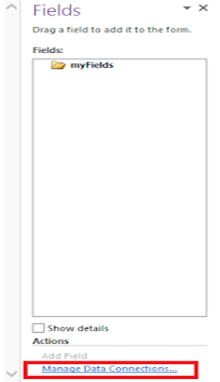
Navigate to the Data tab in the top ribbon and click on Data Connections. Alternatively, you can click "Manage Data Connections" in the bottom right of the Fields pane.
Add a New Connection
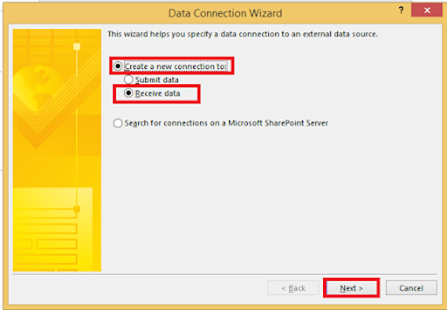
In the Data Connections window, click the Add button to launch the wizard.
Make sure to select:
- Create a new connection to
- Receive data (since we want to get info, not send it)
Connect to SharePoint
Select SharePoint library or list and click Next. Enter your SharePoint Online Site URL where your users exist.
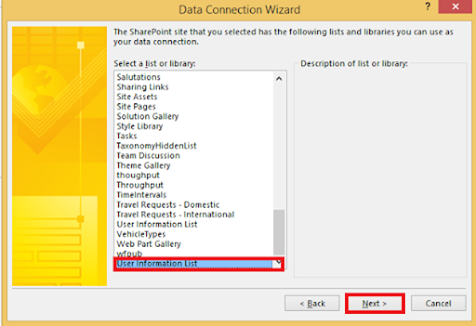
Select "User Information List"
This is the most critical step. Scroll down the list of libraries until you find User Information List.
(Note: This is a hidden list, but InfoPath can see it!)
Choose Your Columns
Don't select everything! To keep your form fast, only check the boxes you need, such as:
- Name
- Account (Email/Login)
- Department
- WorkEmail
Finalize the Connection
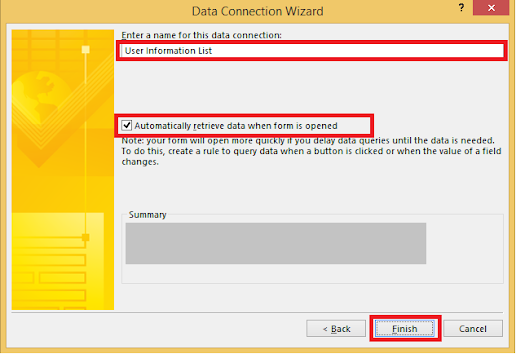
Name your connection "GetUserInfo" and ensure "Automatically retrieve data when form is opened" is checked.
Result: Displaying the Data
Now, drag the dataFields from your right-side panel onto the form as a Repeating Table.

You will now see a list of users populated directly from SharePoint!
Conclusion
Connecting InfoPath to the User Information List is a quick, low-code way to enrich your forms. It improves user experience and ensures data consistency.
Have questions? Drop a comment below!
![How to Add Beautiful Code Snippets in Blogger [ like VS Code ]](https://blogger.googleusercontent.com/img/b/R29vZ2xl/AVvXsEjdKp8Ze0SuI5d6YDN7_hYH-40cXVuhYxuUjucAPEQoTkeXtF-7c7oDmiBWKioSnBGV2gfhW9SrBOY1uEad4MDNnj-ssaEzRf7lE680d0l0OZKR2wAGKxmdVSA6p14xiCDRHFbiaigMJIV7R3jBNWDGn3zCl_rE04xuFrGur2bgPtWXbxI/w400-h400-p-k-no-nu/image.png)


